介紹

|
同步點定位在 2 個要加工的輪廓上,以便在 4 軸模式下強制線材路徑在它們之間。 |
定位同步點有 3 個步驟:
-
定義 2 個輪廓
-
進行輸出以檢查是否需要同步點
-
以自動、手動或組合模式定義同步點
定義輪廓
1/ 定義輪廓
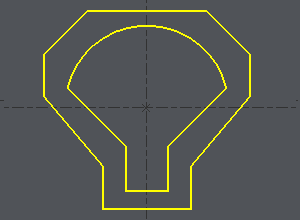
進行選擇框或依序點選 2 個輪廓。
定義起始點在元素的中心,如範例所示:
-
點選輪廓,
-
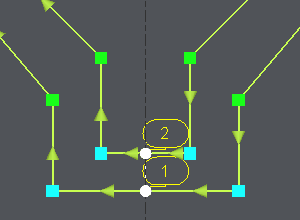
點選起始元素,沿著元素移動游標,並在需要起始點的位置點選,或透過點選按鈕選擇元素的 START 或 MIDDLE:此處選擇 MIDDLE
-
點選結束元素(範例中為相同元素),沿著元素移動游標,並在需要結束點的位置點選,或透過點選按鈕選擇元素的 MIDDLE 或 END:此處選擇 MIDDLE。
|
|
2/ 輸出
-
Once the profiles are done, the dialog bar appears : Click on About the profile [1] . A message box give you the characteristics of the 2 profiles selected, number of elements, number of synchro points.
3/ 定義同步點
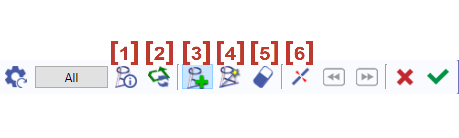

|
關於輪廓 |

|
反轉所選輪廓的方向 |

|
新增同步點 - 手動建立同步點 |

|
在 2 個區域之間自動建立同步點。點選按鈕 ' 全部 ',則針對所有輪廓自動建立。 |

|
透過點選同步點來刪除。 |

|
切割元素 |
點選綠色勾號 ' 其他輪廓 ' 以確認或在另外 2 個輪廓上建立同步點。
點選紅色叉號以取消所有已建立的同步點。
建立同步點時,可以結合手動和自動建立。這就是第二個範例所解釋的。
自動方法
|
Click on [1] . There are 7 elements on a profile and 11 in the other one. It can be machined with the cycle 4 axes contour/contour but it is not optimized. If you want to optimize the toolpath, you have to set up synchro points. |
|
|
The synchro point can only be defined on existing points or elements extremities. You have to cut an element : click on [6] and then click on the arc, you can move the cursor all along the element, click on the screen when you want to cut. A circle (tangency) or a square (sharp angle) is displayed where you cut. |
用白色游標切割圓弧 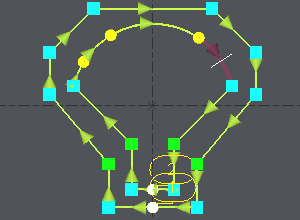
|
|
The number of elements is now the same on the 2 profiles : Click on [4] 然後點選 ' 全部 ',2 個輪廓的所有端點都會兩兩連接。 |
同步點會自動建立 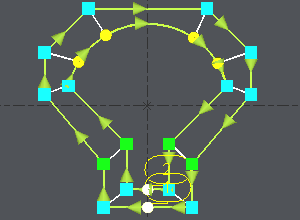
|
手動和自動方法結合
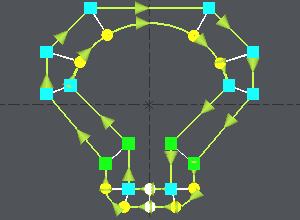
讓我們以一個相同的範例,但有另外 2 個角落。這裡我們需要建立雙重同步點,這在自動模式下是不可能的:
|
Click on [1] to have information about the 2 profiles. |
|
|
Click on [3] , click on the angle (blue square) and click on an extremity of the corner (yellow circle), click again on the angle (blue square), a message warns you about the creation of a double synchro point, click on OK and click on the other extremity of the corner (yellow circle). 在另一個角落重複相同的操作。 |
|
|
The synchro point can only be defined on existing points or elements extremities. You have to cut an element : click on [6] and then click on the arc, you can move the cursor all along the element, click on the screen when you want to cut. A circle (tangency) or a square (sharp angle) is displayed where you cut. |
|
|
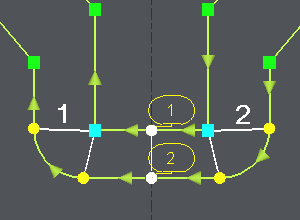
We want to create synchro points between the 2 corners already treated : click on [4] ,點選已定義的 2 個同步點( 1 和 2 在圖中),以限制要處理的區域,2 個輪廓的所有端點都會兩兩連接。 |
Once the synchro points are set up, click on [1] to obtain information for the synchro points created , if the machining is possible you are told about it. Then you can go to the machining editor and choose the cycle 4 axes cnt/cnt.